Recognize the right detail
Save multiple reference crops per target. Adjust matching thresholds, scales, search regions, and exclusions. Test recognition without sending input.
 VISUAL
Build with the app you already use. Visual references tell the workflow what to look for; explicit connections tell it what happens next.
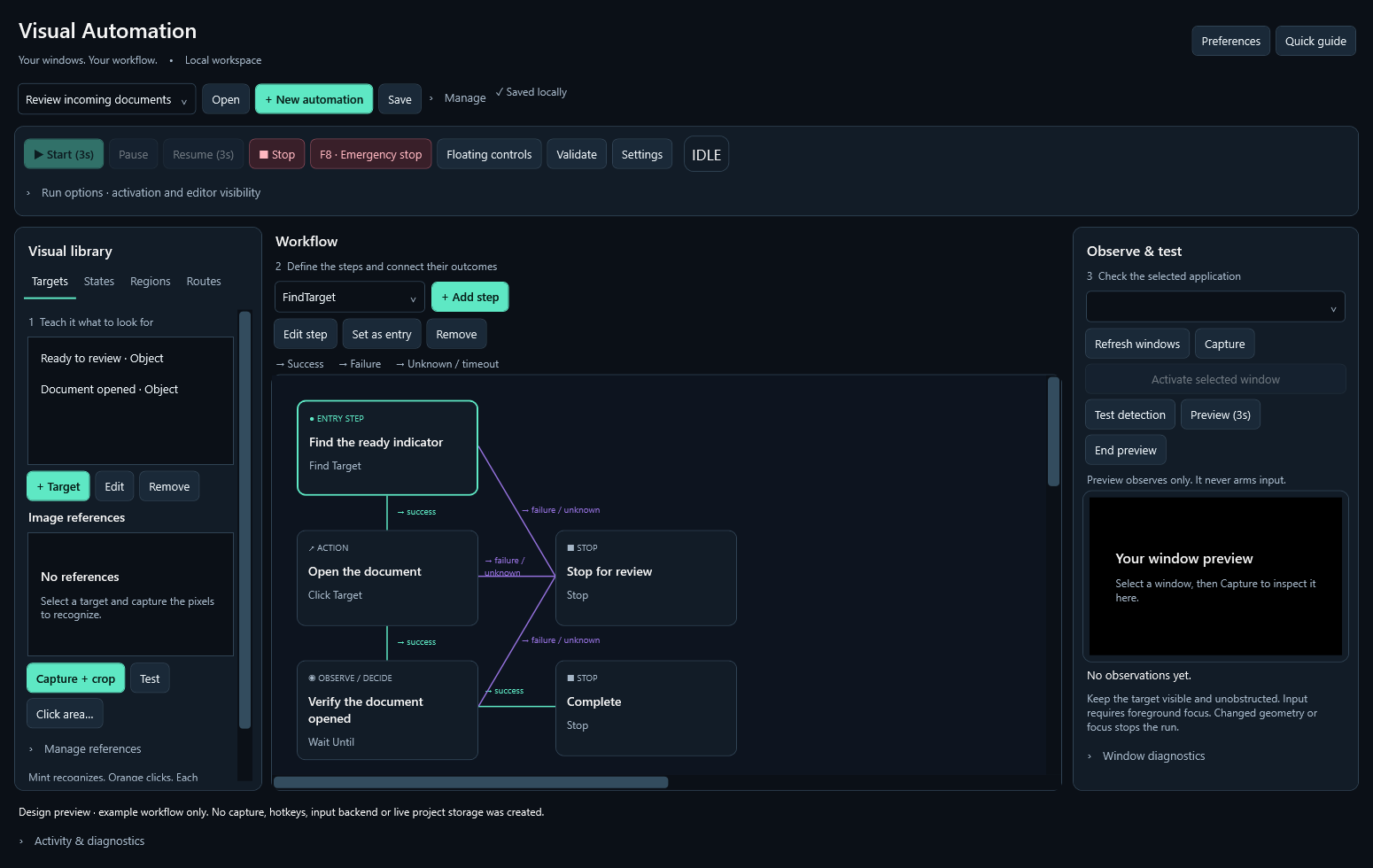
Save multiple reference crops per target. Adjust matching thresholds, scales, search regions, and exclusions. Test recognition without sending input.
Use conditions, branches, repeats, waits, keyboard input, clicks, routes, jumps, and stop blocks. Connect success, failure, and unknown outcomes.
Group positive evidence into named states. Ambiguous or insufficient evidence stays UNKNOWN; absence alone never proves another state.
Opt into bounded foreground recovery. Resume only after stable window checks and fresh observations; uncertain delivered input requires review.
Start deliberately. Pause releases held inputs. F8 latches an emergency stop. A visible status and bounded event log explain what the workflow is doing.
Save workflows, original captures, crop metadata, regions, routes, and click areas. Import or export a project archive without an account.
Design what the workflow should do when a target is not where you expect.
Recovery paths are configured and bounded. The application cannot invent a reliable recovery sequence for an arbitrary screen.